What is a Workspace?
Workspaces allow you to customize your browser experience by overriding the default homepage and new tab page. They also let you set shortcuts to your most frequently used web applications, streamlining your workflow, enhancing productivity and security.
With the help of Profiles, workspaces can be configured for different roles in the organization, creating a one-stop place to configure secure access for all members in your organization.
Getting Started
From the Workspaces tab when editing or creating a profile, you can select one of the workspaces you have in your environment or create a new one. After selecting either option, you will be able to edit the details:
- Name
- SSO Integration: The SSO Integration to use.
- Theme Settings: The visual appearance of the workspace.
- Applications: The applications available in the workspace.
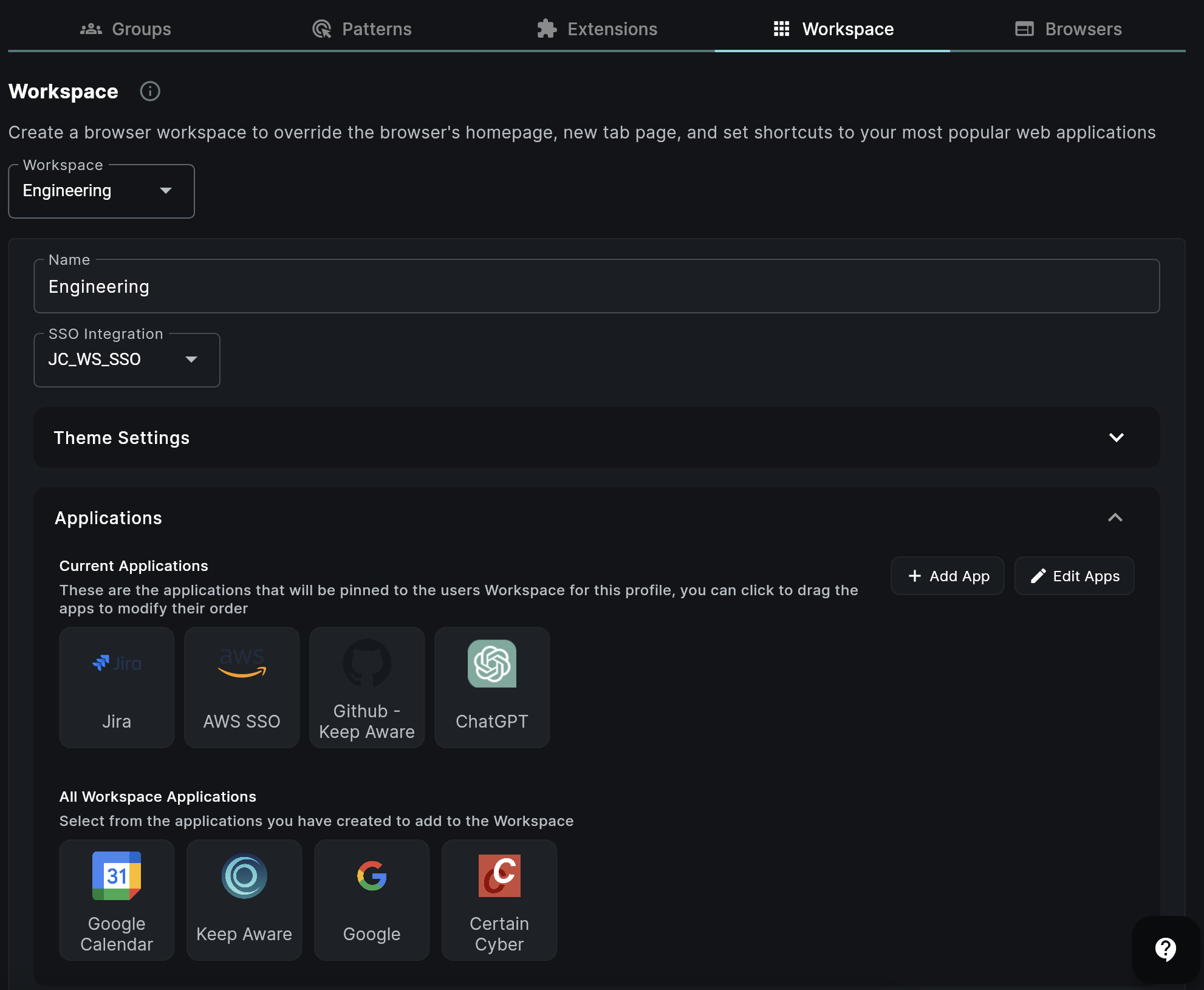 Image: Workspace Editor
SSO Integration
Configure Single Sign-On (SSO) to streamline user authentication and ensure secure access to the workspace. This integration allows users to sign in once and gain access to all their applications without needing to log in separately. You can configure SSO integrations in the Integrations page, under Keep Aware Workspaces. See the Integrations Page to learn more.
Theme Settings
Customize the visual appearance of the workspace by selecting between light or dark theme. You can also set a custom background to align with your organization's branding.
Applications
By registering applications and adding them to the workspace, you can configure which will be available for users under that profile. Click on the expandable applications section to manage which applications are included in the specific workspace. You can select from all the applications you have registered or create a new one.
Create or Edit Applications
When modifying an application, you can configure the following:
- Display Name: How the application will be labeled.
- Link URL: The destination URL for the app. If SSO is configured, this URL will utilize the Single Sign-On to authenticate users seamlessly.
- Icon: The icon shown to the user for the application.
Frequently Asked Questions
| Question | Answer |
|---|---|
| What if a user is in multiple profiles and each one has a different profile? | When more than one profile applies to the user, the one with the higher priority will be used to determine the workspace. |
Examples
Streamlining Access for Sales Teams with Workspaces
Scenario
The sales team uses various web applications, such as a CRM system, email, calendar, and document management tools. To improve efficiency and ensure that all team members have quick and secure access to these tools, a workspace is created for the Sales team.
Steps to Implement
- Create a sales workspace:
- Navigate to the Profiles section and create a new profile.
- Navigate to the Workspaces tab.
- Select "Create New" in the Workspace dropdown.
- Customize the workspace:
- Name: Set the name as "Sales Workspace."
- SSO Integration: Configure Single Sign-On (SSO) to streamline authentication for all sales applications.
- Theme Settings: Apply the company's branding to the workspace for a consistent look and feel.
- Applications: Add shortcuts to essential sales applications, such as:
- CRM (Customer Relationship Management) system
- Email client
- Calendar
- Document management tool
- Sales performance dashboard
- Create a group for the sales team:
- Go to the Groups tab.
- Click on Create Group and name it "Sales Team."
- Add all sales team members to this group. If integrated with a directory service like Azure, import the sales team user group directly.
- Add the group to the sales team profile.
- Deploy the workspace
Outcome
The sales team now has a dedicated workspace that provides quick access to all their essential tools in one place. Thanks to the SSO integration, team members can access applications without repeatedly logging in, enhancing both productivity and security. This setup allows the team to focus more on their core activities and less on managing multiple logins and navigating through different web applications.