Creating a Workspace
Workspaces are configured from the Profile page and each Profile is allowed a single Workspace. The Workspace will be applied to all the User Groups that are added to the Profile, Browser Groups and Device Groups are currently not supported with Workspaces.
Getting Started
To create a Workspace, navigate to the Profiles page from the menu on the left side of your console. By selecting or creating a Profile and opening the Profile editor and navigate to the Workspaces tab.
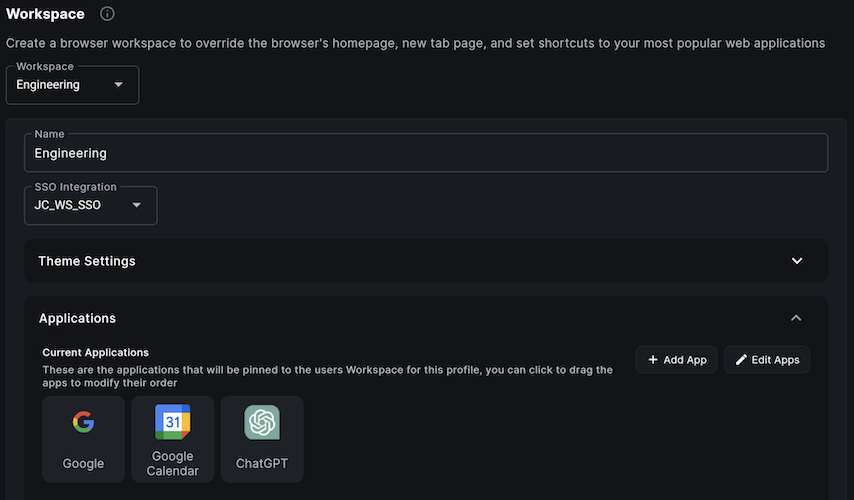
Image: Example Workspace
Creating your first Workspace
After navigating to the Workspaces tab, if you are setting up Workspaces for the first time you will be prompted to setup a Workspaces SSO integration which is required to create a Workspace. This will allow employees to sign-in and access their Workspace.
To learn how to setup the Workspaces SSO integration, view Setting up Workspaces SSO?
- Select Create New from the Workspace dropdown.
- Enter a Name for your Workspace.
- Select your SSO Integration from the dropdown.
- (Optional) Set a background image for your Workspace under Theme Settings: This will change the default solid color background of the Workspace. You can select the theme you would like the Workspace to be locked to, or select Custom to allow employees to change themes between Light and Dark.
- Create or select the applications you want to display for this Profiles Workspace. To create an app select Add App in the top right of the Applications section.
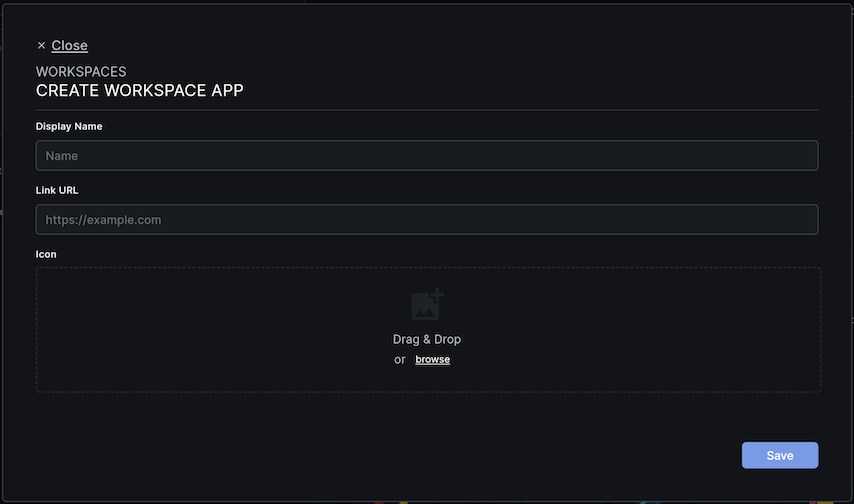
- Enter a Name for the application that will be the display name shown to your employees.
- Enter the Link URL the employee will be taken to when they click the app shortcut in their Workspace.
- Upload an Icon for the application that will be the icon shown for that app in your employees Workspace.
- Save the application.
- Save the Profile. This will save any Workspace changes you have made to the Profile.
Frequently Asked Questions
| Question | Answer |
|---|---|
| How many Workspaces can I create per Profile? | Each Profile is allowed a single Workspace. |
| Can Workspaces be applied to Browser Groups and Device Groups? | No, currently Workspaces can only be applied to User Groups. Browser Groups and Device Groups are not supported. |
| Do I need to set up SSO integration to create a Workspace? | Yes, setting up a Workspaces SSO integration is required to create a Workspace. |
| What if a user has 2 profiles with a Workspace applied to them? | The Profile with the highest Priority will be applied to the user. |