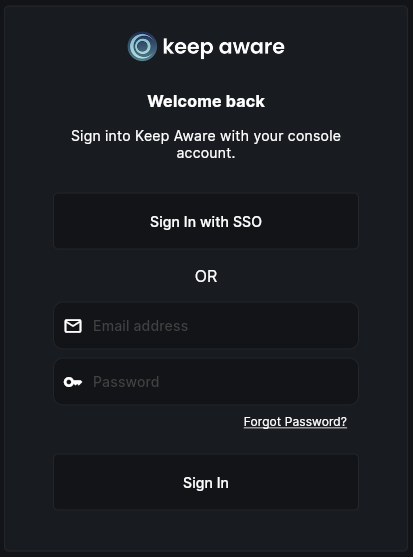
Setup SAML to sign into the console with SSO provider.
Setting up SAML SSO
Requirements
- Access to the Keep Aware Console: Ensure you have valid login credentials and are logged in to the console.
- Administrator access to an SSO vendor: Confirm that you have the necessary permissions to configure SAML-Based Single-Sign-On with your vendor.
Getting Started
Configure SAML Settings
To get started, you will need to setup SAML-Based Single-Sign-On with your preferred vendor, and then export the SAML metadata which will be used to configure SSO for the Keep Aware Console.
SAML Settings
Setting up SSO in the Keep Aware Console
Navigate to the Integrations Page and select the SAML SSO integration. This will open a modal where you can select Create New Integration.
Configure the following fields:
- SAML 2.0 Endpoint (Login URL): The Login URL from your SSO provider.
- Issuer: The Issuer from your SSO provider.
- Public Certificate: Enter the certificate from your SSO provider, excluding the header and footer (
----BEGIN CERT...----END CERT...). - Email Attribute Mapping Key (Optional): This will vary vendor to vendor but you can configure a custom mapping for a users email address and then specify the name for that mapping here and we will use that instead of the default that is given in the SAML response. This is not needed for most implementations.
Test the Integration
- Logout of the Keep Aware Console.
- Login with SSO: Enter your email on the login page. You should now see and select the Sign-in with SSO option.