Okta
The Keep Aware integration with Okta is a high capacity directory syncronization for ingesting users, groups, and group memberships into the Keep Aware system. This integration will first do a bulk data extraction from okta followed by real-time streaming syncronization via the Okta Event Hook Endpoint.
Requirements
- Access to the Keep Aware Console: Ensure you have valid login credentials and are logged in to the console.
- Administrator access to your Okta environment: Confirm that you have the necessary permissions to create app integrations and configure event hooks in your Okta environment.
Getting Started
At a high level, the Okta Groups integration involves creating a new Okta Application that has read-only permissions to the Okta groups and user profiles. Once created, the Application’s client ID can be set in your Keep Aware console to begin syncing Okta Groups with Keep Aware.
Keep Aware browsers will be synced automatically to the Okta Groups and kept in sync with Okta Event Hooks. These groups can be referenced in Profiles to make threat responses and messaging specific to certain groups.
Okta Application Setup
- Navigate to the Okta admin portal Applications tab and click Create App Integration.
- Set the Sign-in method to OIDC and the application type to Single Page Application.
- Under General Settings, set both Authorization Code and Refresh Token grant types.
- Grant Type: This will need both the Authorization Code and the Refresh Token boxes checked.
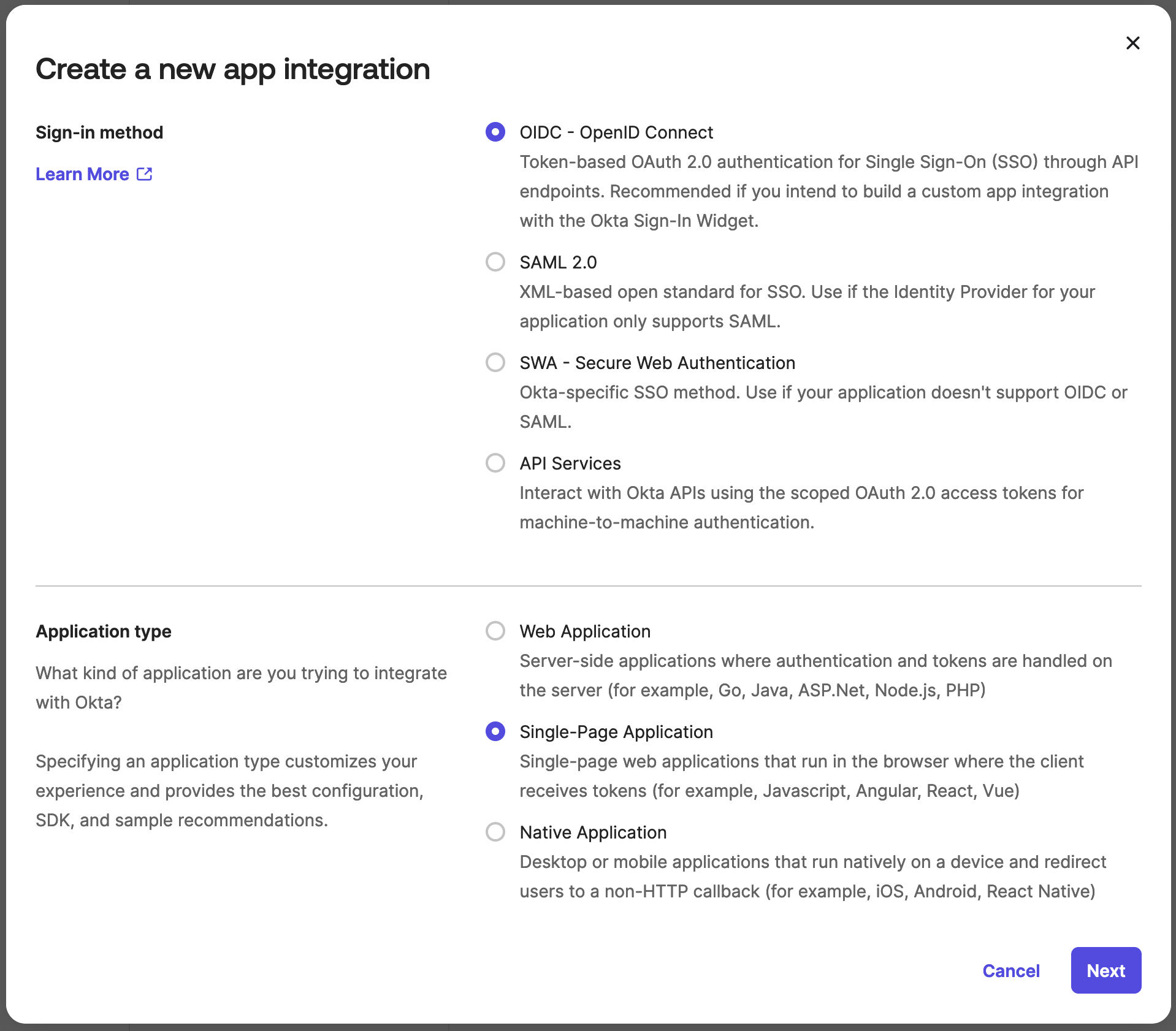
Image: Okta Create New App Integration Modal
- In addition to setting grant types, be sure to add the following URL to your sign-in redirect URIs.
https://console.awarefilter.com/utility/integrations
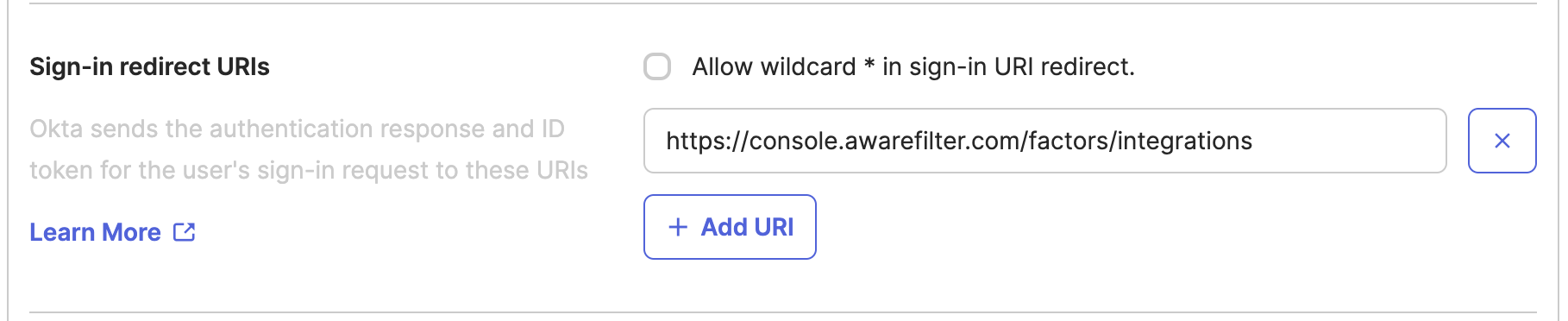
Image: Okta Sign-in redirect URIs
- Save the application, and Navigate to the Okta API Scopes tab and grant the following permissions:
- okta.apps.read
- okta.groups.read
- okta.users.read
- Assign the admin setting up the integration to the Okta application so they can authenticate Keep Aware with Okta when setting up in the console.
The Application you just created in Okta should now show up in your applications list, make sure you save the client ID for a later step.
Keep Aware Console Setup
From the Keep Aware Console, navigate to the Integrations page
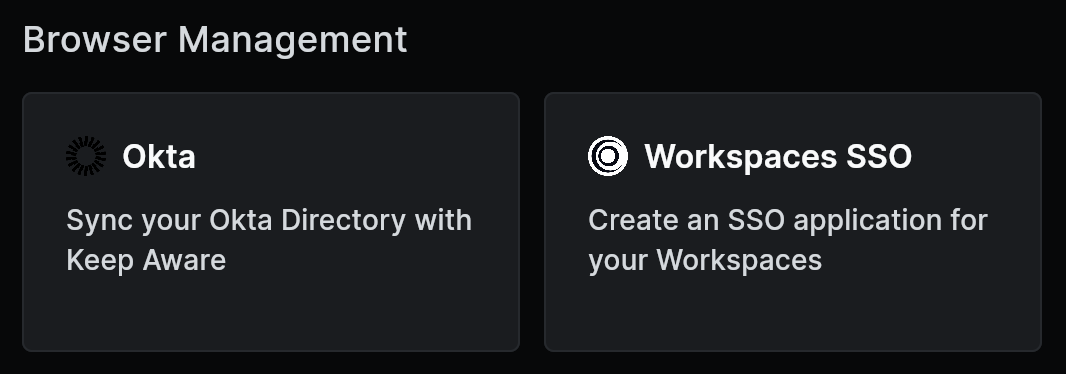
Image: Integrations Page With focus on Okta Integration Card
- Under the Browser Management section select the "Okta" card.
- When the Okta modal pops up, select the Create New Integration button.
- Set your Okta Domain. If you do not know your Okta domain follow these instructions to get it.
- Set your Okta Application (Client) ID.
- Click Save. This will redirect you to Okta to authenticate Keep Aware with your Okta Application.
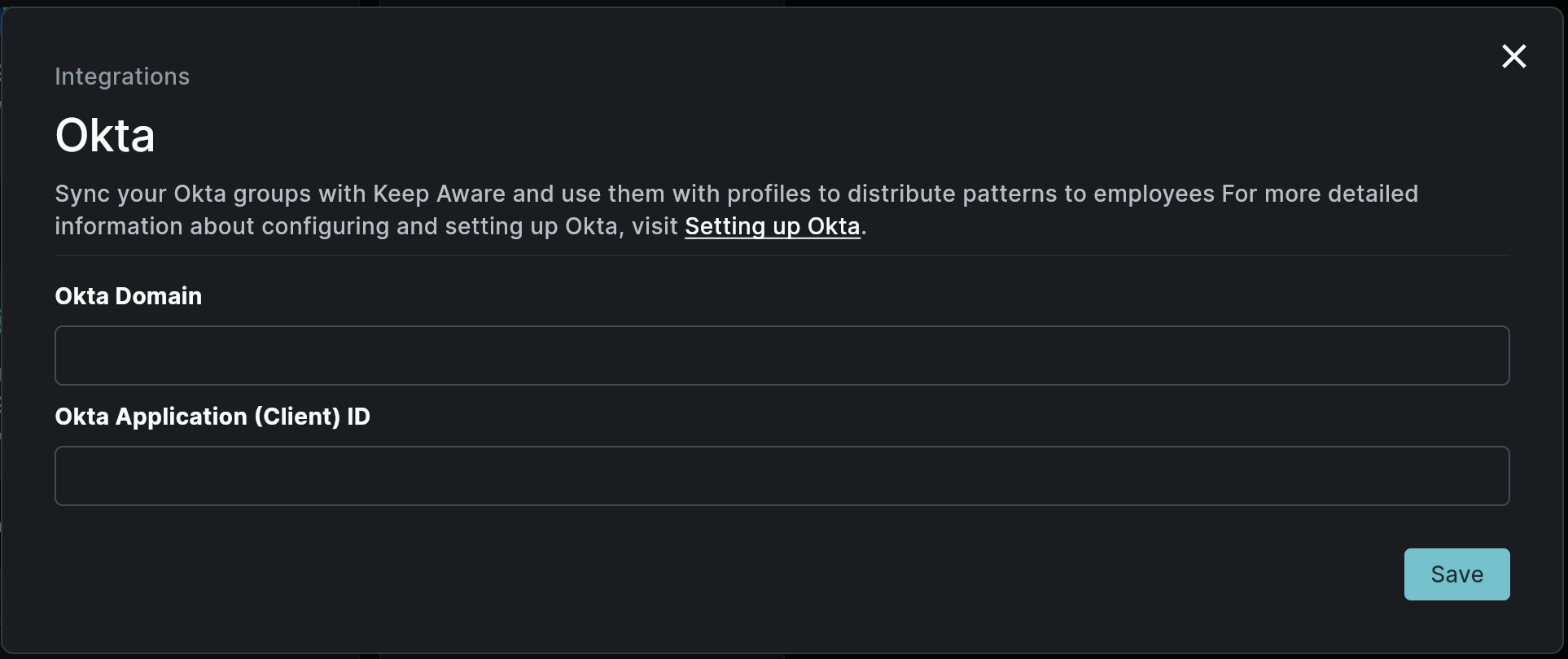
Image: Integrations Page With focus on Okta Integration Card
After you have finished setting up Okta in the Keep Aware Console, you will need the Okta Event Hook Authentication Secret which will now be available in the modal as a field you can copy.
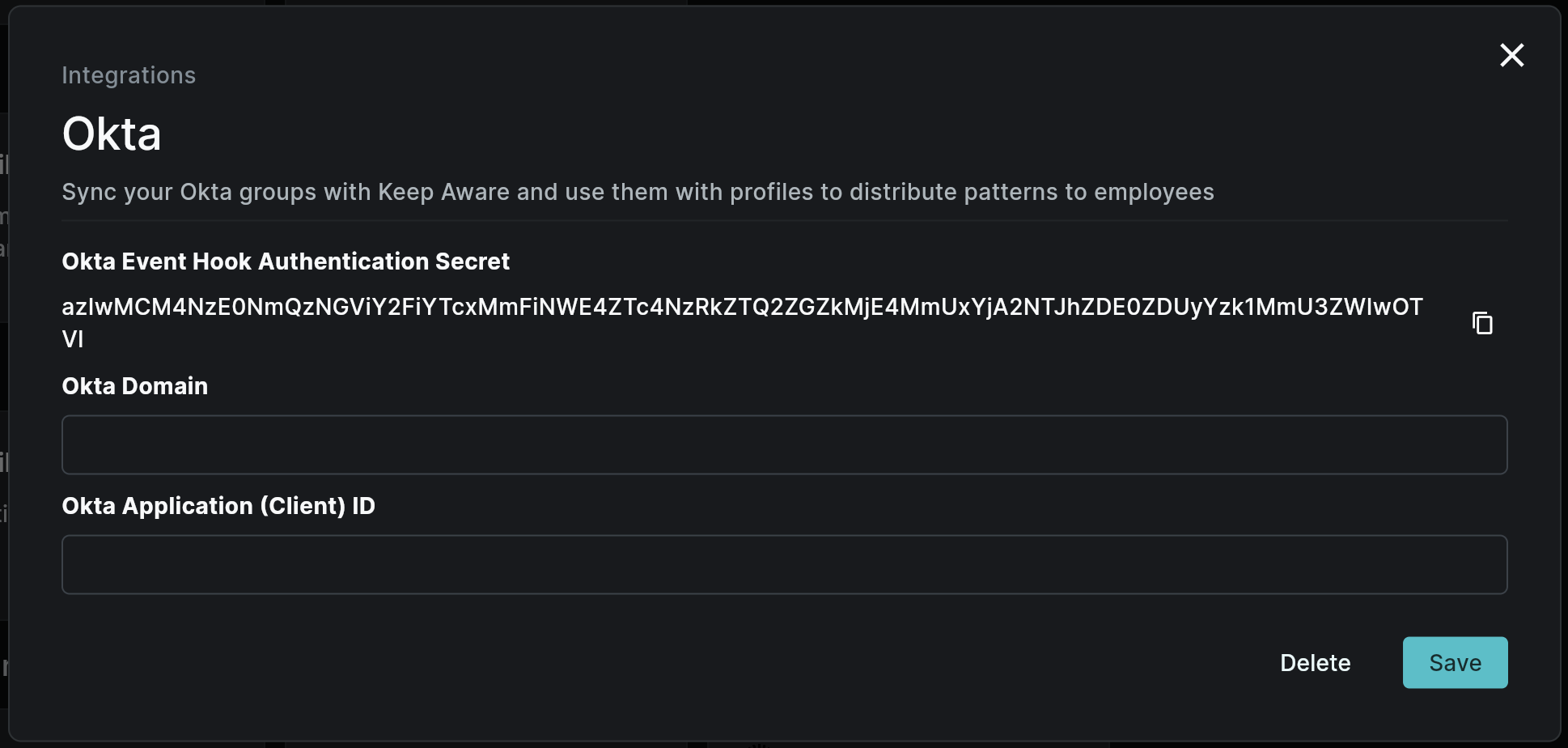
Image: Okta Event Hook Authentication Secret
Assign Groups to the Okta Application
Keep Aware will only sync groups that you have assigned to your Okta Application. You can add and remove groups at anytime and Keep Aware will keep them in sync.
Okta Event Hooks
Keep Aware uses Okta event hooks to update groups in real-time from Okta in Keep Aware.
From the Okta Admin portal you will need to navigate Event Hooks page under the Workflow tab.
- Select the Create Event Hook button.
- Fill out the following fields:
- Name
- URL: Enter the following URL:
https://cloud.awarefilter.com/v1/groups/changes - Authentication field:
Authorization - Authentication secret: Paste in the Okta Event Hook Authentication Secret from the Keep Aware Console Okta integration.
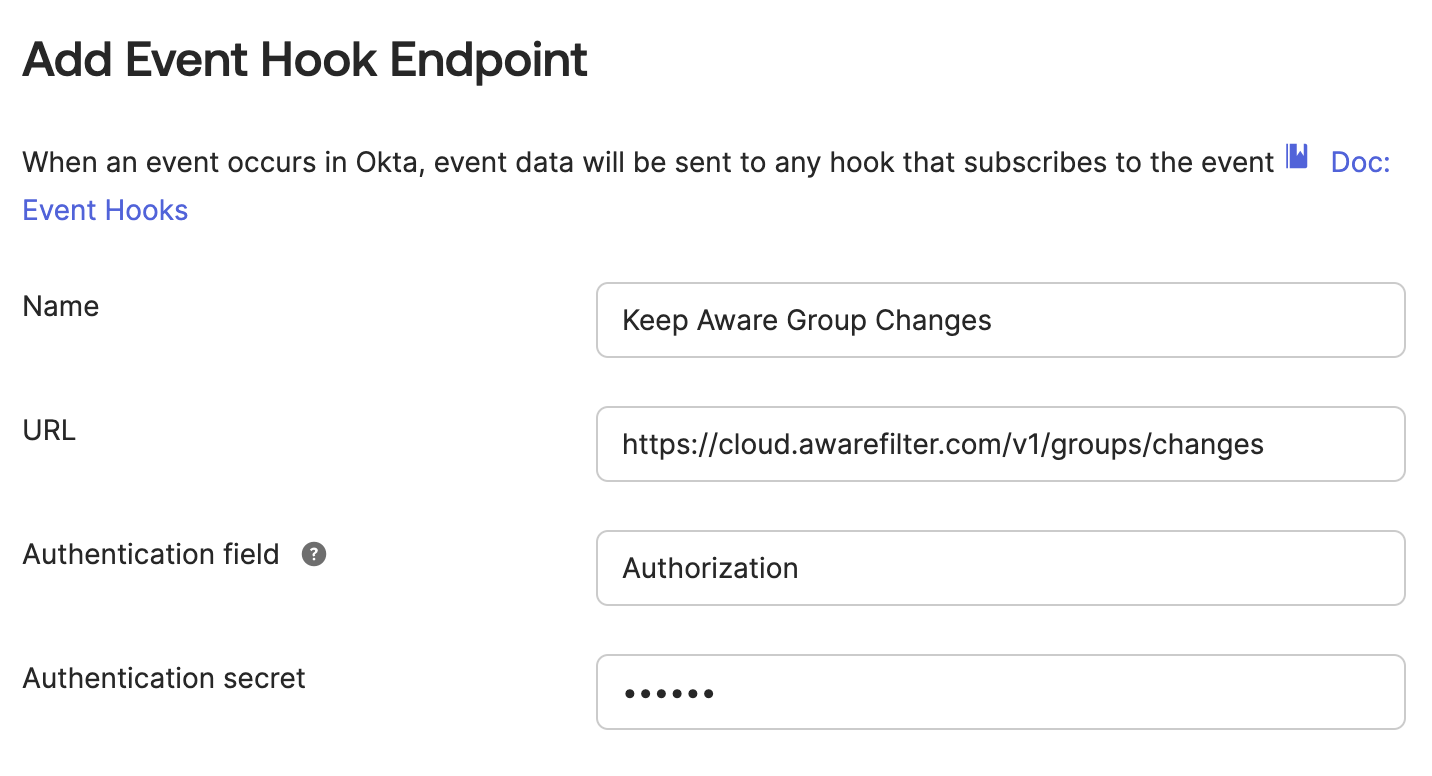
Image: Okta Event Hook creation modal
- Next, Add the following event types to the Subscribe to Events field:
- Create Okta group
- User added to group
- User removed from group
- Add assigned application to group
- Remove assigned application to group
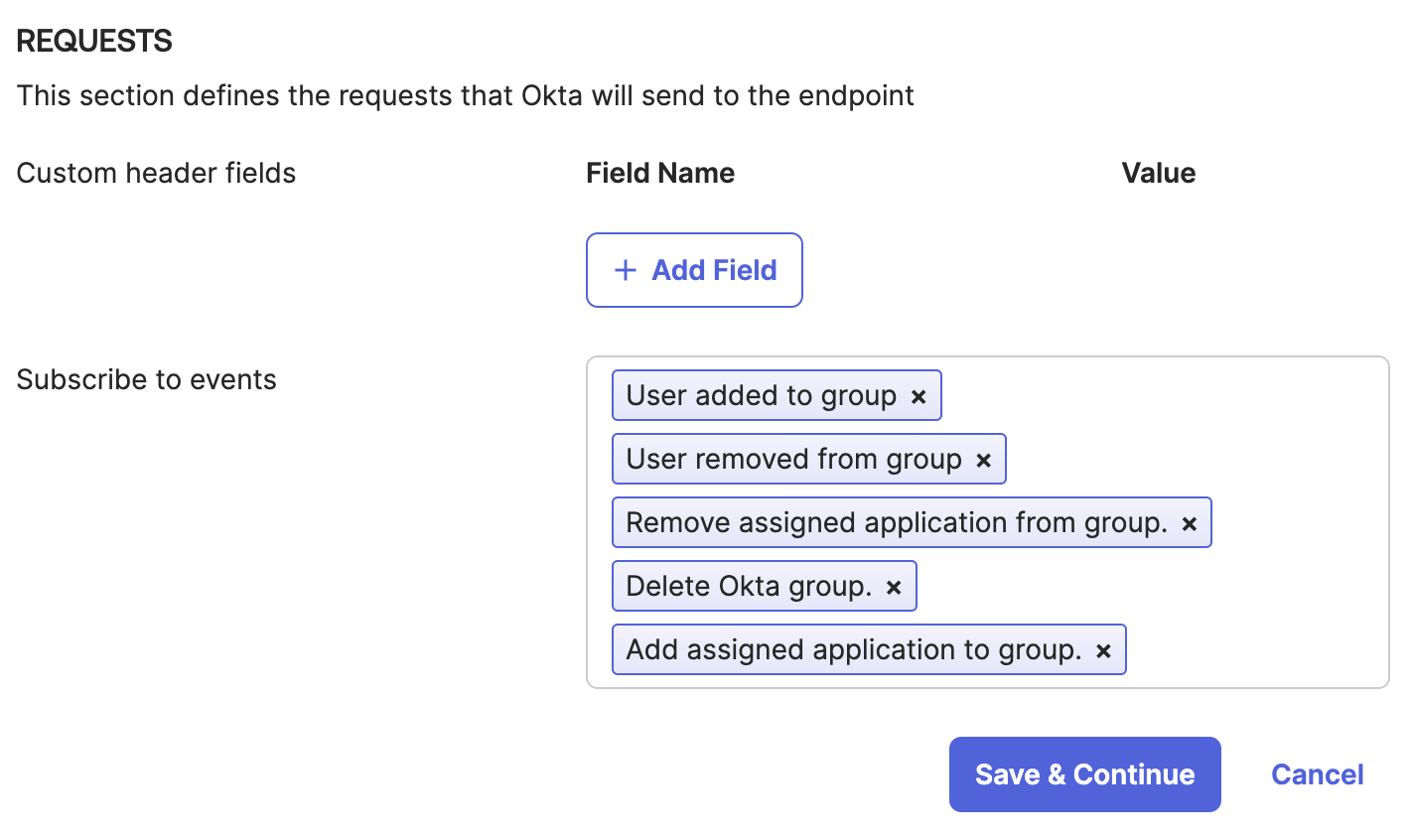
Image: Okta Event Hook creation modal
- Click save and continue. When presented with the Verify Endpoint Ownership modal, click Verify.
After the event hook has been verified, Keep Aware will sync with the groups assigned to your Okta Application. As you add, remove, or edit your groups Keep Aware will sync these changes in real-item.