Custom Branding
Keep Aware allows you to upload custom icons and logos that will be used in place of the default Keep Aware branding for notices shown to employees and for browser Workspaces.
Getting Started
To set up custom branding, navigate to Safeguards in the console and click Settings to open the safeguard settings panel, where you can upload your Icon and Logo.
Uploading Branding
When uploading branding assets you have the option to upload an Icon and a Logo.
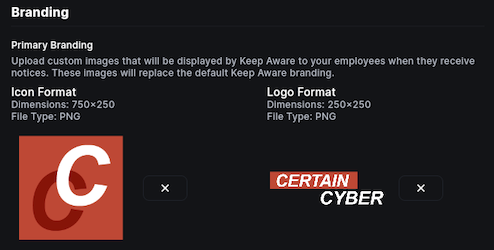
Icons will be used on smaller notices shown to employees like Cards or Tooltips.
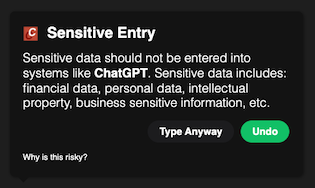
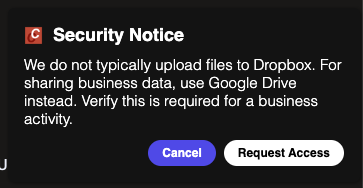
Image: Tooltip and Card Notice Examples
Logos will be used on larger notices like when a employee is blocked from visiting a webpage and is redirected from the page and shown Redirect notice. Logos will also be used for Modal notices where the employee is not redirected but shown a modal overlay on top of the web page they are viewing.
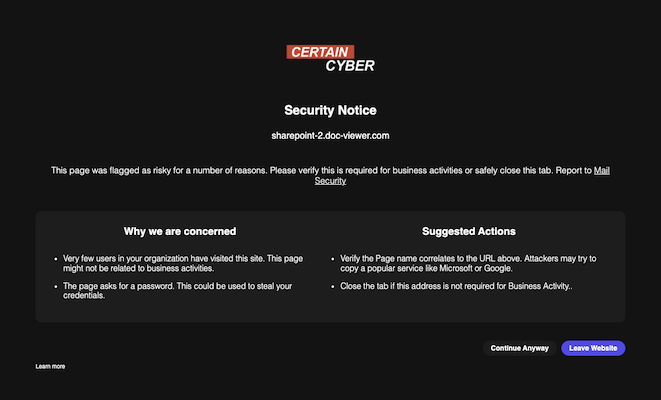
Image: Redirect Notice Example
Alternate Branding
Alternate branding is not used for notices shown to employees in the browser, it is used to provide an alternate set of branding for your Workspaces.
Workspaces allow employees to change between light and dark themes for their workspace in the browser. This may cause your Primary logo to be hard to recognize depending on the theme.
Below is a reference for when Alternate and Primary branding is used on your employees Workspaces.
- Primary Branding: Will be used when the Workspace theme is set to Dark mode.
- Alternate Branding: Will be used when the workspace theme is set to Light mode.
To learn more about setting up Workspaces, visit Creating Workspaces