Searching in Keep Aware
Searching in Keep Aware allows you to easily find suspicious activity, threats and discover risk across the organization. Keep Aware provides a deep level of visibility into browser activities such as page visits, credential use, uploads, downloads, extension activity, and other in-tab behavior.
Any search can be easily transformed into detection logic and deployed as policy through Policies and Profiles.
Requirements
Keep Aware searches rely on Apache Lucene queries. For more details visit: Apache Lucene Query Syntax. Searches can also be built with the Search Builder in the console.
Searching for fields with exact matches should surround the search term in quotations — user.label:"robert@yourcompany.com" — while searches with wildcards are often wrapped in astericks — user.label:*robert*.
Getting Started
Several pages support searching. To get started searching, navigate to the Events page from the menu on the left side of your console. Click the magnifying glass icon to open the search area and use the search bar to search for events and extensions with various fields. Or use the Search Builder or Filter options on the right-side of the search bar to discover certain fields.
Search Bar
Use the search bar to search across Keep Aware logs. The bar contains the capabilities to search using the search area or the Search Builder, add a filter to the search, change the search timeframe, sort the results, refresh the results, and pivot to another page. The capabilities available in the search bar varies based on the specific page you are on.
 Image: Events Search Bar
Search Bar Components
- Search Area: The search area can be used to develop Lucene queries (e.g.,
user.label:"awittan@certaincyber.com") or to perform plaintext search (e.g.,awittan@certaincyber.com). Click on the magnifying glass to expand the search area to type a search query. - Search Builder: The search builder allows you to create a valid Lucene search in a user-friendly manner. To get access to the Search Builder, first click on the magnifying glass to expand the search area.
- Filter: This filter builder adds a filter in addition to any search logic. The filter area uses the same interface as the Search Builder.
- Timeframe: The timeframe dropdown changes the search timeframe to the last 24 hours, 7 days or 30 days. The default timeframe is the Last 7 Days.
- Sort: The sort dropdown sorts events by First Seen, Highest Score, or Lowest Score. By default, events are sorted by Last Seen (i.e., the most recent events first).
- Refresh: The Refresh button reloads the search results. This capability is particularly useful for viewing the most recent events that have occurred since the search last executed.
- Pivot: The Pivot capability will take the search on the current page and run it on a new page. This can be helpful to see the same search across different visualization or breakdowns.
- Knowledge Center: Click the info icon, on the far right, to access Keep Aware Knowledge Center for more information.
Search Builder
The Search Builder allows you to create a valid search in a user-friendly manner. This feature is particularly useful for long or complex searches and to rapidly find valid fields.
To Open the Search Builder
- In the search bar, click the "Open Search Builder" icon.
- Use the Search Builder to rapidly identify available fields and create a valid search query.
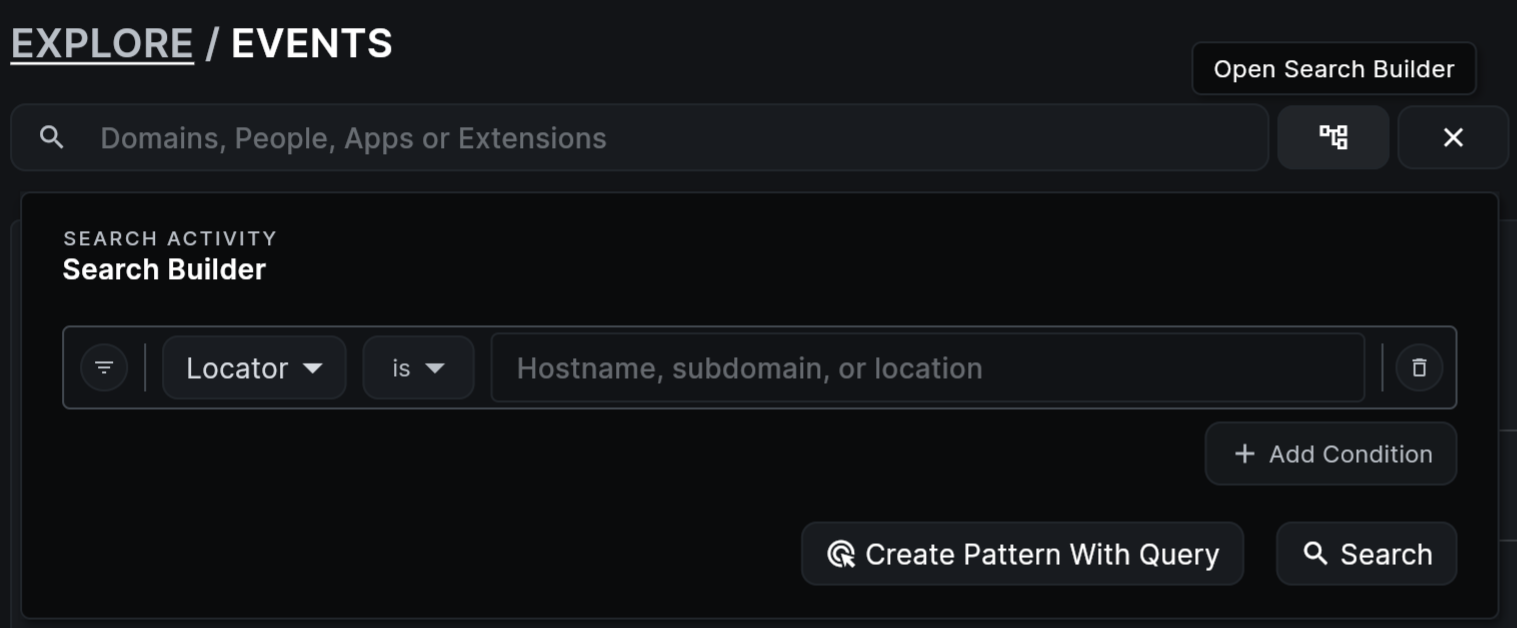 Image: Events Search Builder
Search Builder Components
When using the Search Builder, you are able to quickly perform the following actions:
- Include or Exclude a particular filter
- Select a search property (a.k.a., a field)
- Select a comparison operator (e.g., "is", "is not", "contains", "does not contain")
- Enter a value with which the property will be compared against
- Add another condition or an inner group of conditions
- Change logical operators (Click any "AND" operator to change it to an "OR" and vice versa)
- Create a Pattern using the search query
Examples
Activities of a User
Find recent events for a user named Robert.
user.label:*robert*
Alternatively, you may perform the below string search.
robert
If you know the user's email linked to the Keep Aware extension, you may use the below search.
user.label:"robert@yourcompany.com"
Other Examples
For other examples, refer to the remaining documentation on Searching using event and threat fields, extension fields, and asset fields.