Setting up Alerts for Slack
Integrate Keep Aware with Slack to send alerts directly to your Slack channels.
Requirements
- Access to the Keep Aware Console: Ensure you have valid login credentials and are logged in to the console.
- Access to add Apps to your Slack Workspace: Confirm that you have the necessary permissions to install new apps in your Slack environment.
Getting Started
Setup a Webhook in Slack
First, set up a webhook in Slack or use an existing one. For detailed instructions on setting up webhooks in Slack, refer to their documentation:
Setting up Slack in Keep Aware
To get started, navigate to the Integrations Page and select the Slack integration. This will open a modal where you can select Create New Integration and begin configuring the integration.
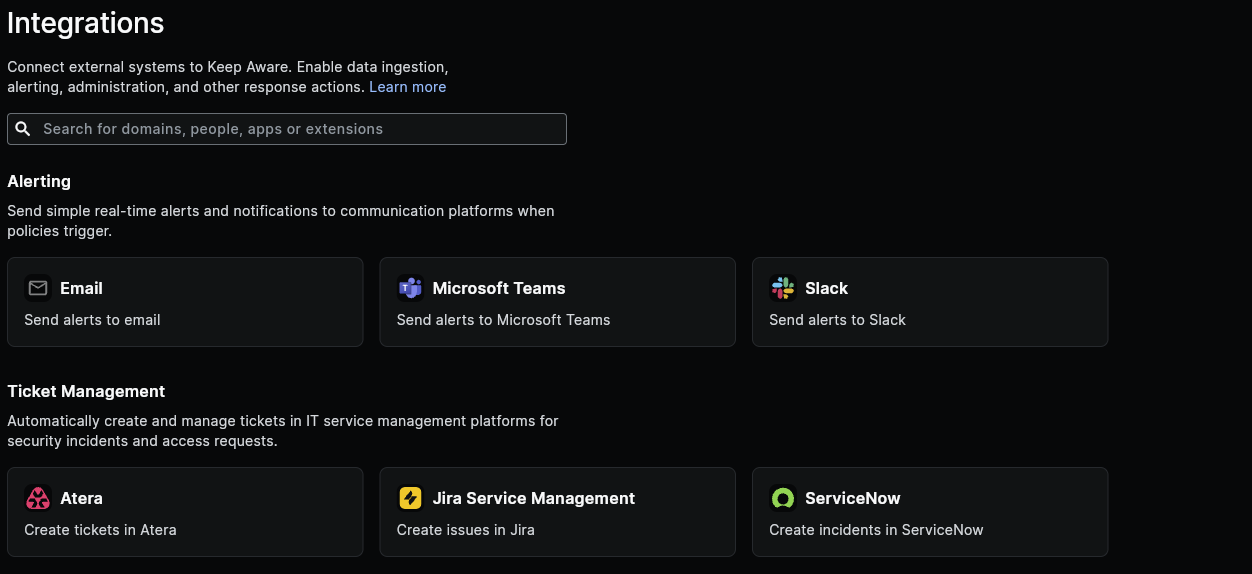 Image: Integrations Page
Configure the following fields:
- Identifier: A unique name for your Slack Integration.
- Slack Webhook: Your Slack webhook URL.
- Body: This is the JSON body that will be sent to Slack. See below for information on custom alert messages in Slack.
After saving the integration, the basic setup for connecting Slack to Keep Aware is complete.
Customize the Alert Sent to Slack
All payloads sent to Slack utilize wildcards and will be populated with values gathered from the Event or Threat that triggered this integration on a Policy.
To customize the Slack message payload, refer to Slack's documentation:
Slack Advanced Message Formatting
Example body with wildcards (all values wrapped in double-curly brackets will be replaced with their corresponding value from the Event):
{
  "text": "Keep Aware Threat Detected",
  "unfurl_links": false,
  "unfurl_media": false,
  "blocks": [
    {
      "type": "header",
      "text": {
        "type": "plain_text",
        "text": "Keep Aware Alert"
      }
    },
    {
      "type": "section",
      "text": {
        "type": "mrkdwn",
        "text": "{{short}}. This activity was flagged by the policy, {{policy.label}}"
      }
    },
    {
      "type": "divider"
    },
    {
      "type": "section",
      "text": {
        "type": "mrkdwn",
        "text": "*User:* `{{user.label}}`\n*Location:* `{{location}}`\n\n<https://console.awarefilter.com/explore/threats| View Threat Dashboard>"
      }
    }
  ]
}
Further details on all wildcard fields that may be used in the Body are available in our Searching documentation under Event and Threat Fields.
Frequently Asked Questions
| Question | Answer |
|---|---|
| How can I find out what message formatting options are available in Slack? | Formatting and structure options are listed in the Slack Advanced Message Formatting |
| How can I find out what Event and Threat fields can be forwarded to Slack? | All available Threat and Event fields are described and documented in the Event and Threat Fields Documentation |